It’s very popular to put a $ on lines that are intended to be a command in code documentation that involves the terminal (i.e. the command line).
Like this:
$ brew install somepackageThe point of that is that it mimics the prompt that you (may) see on your command line. Here’s mine:
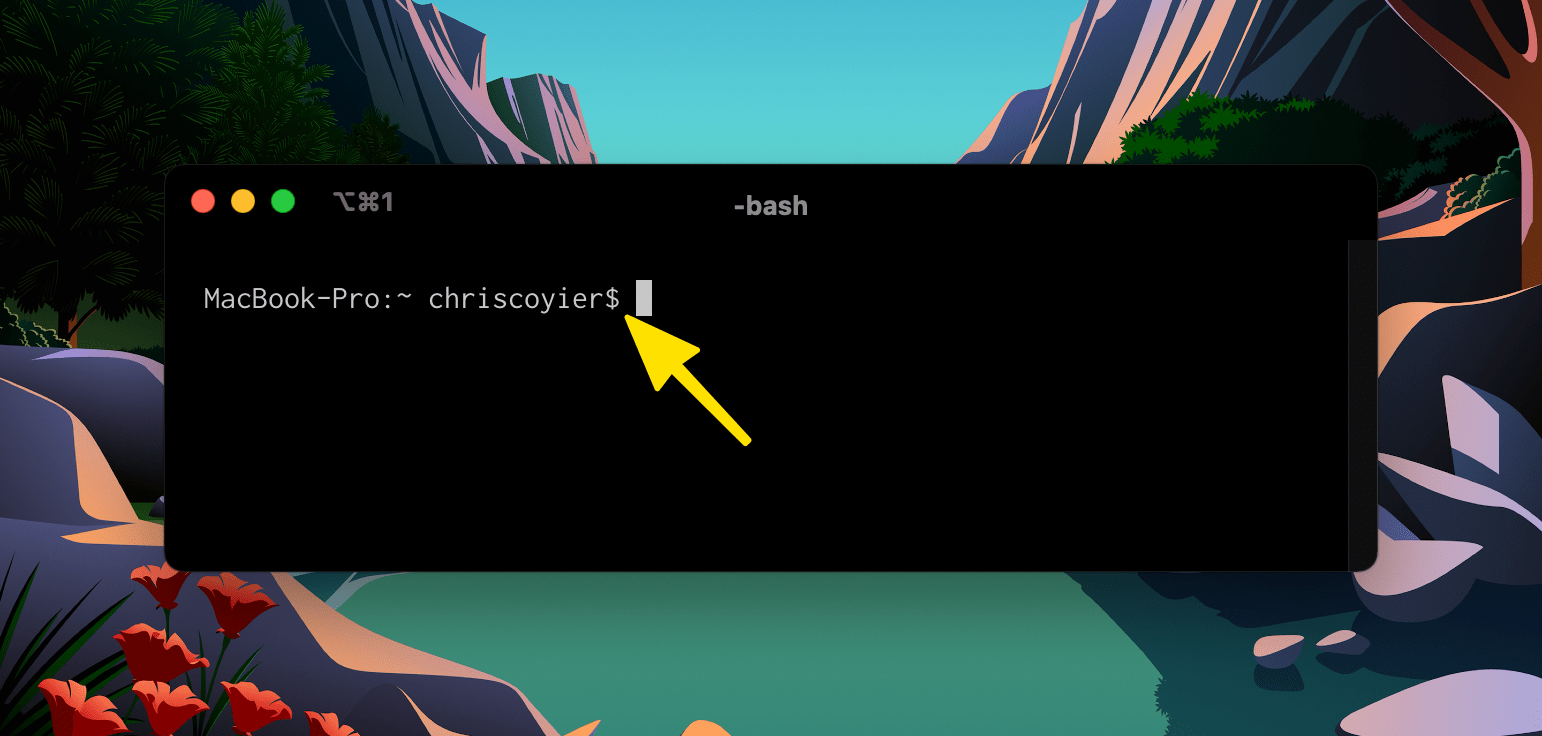
So the dollar sign ($) is a little technique that people use to indicate this line of code is supposed to be run on the command line.
Minor trouble
The trouble with that is that I (and I’ll wager most other people too) will copy and paste commands like that from that documentation.
If I run that command above in my terminal exactly as it’s written…
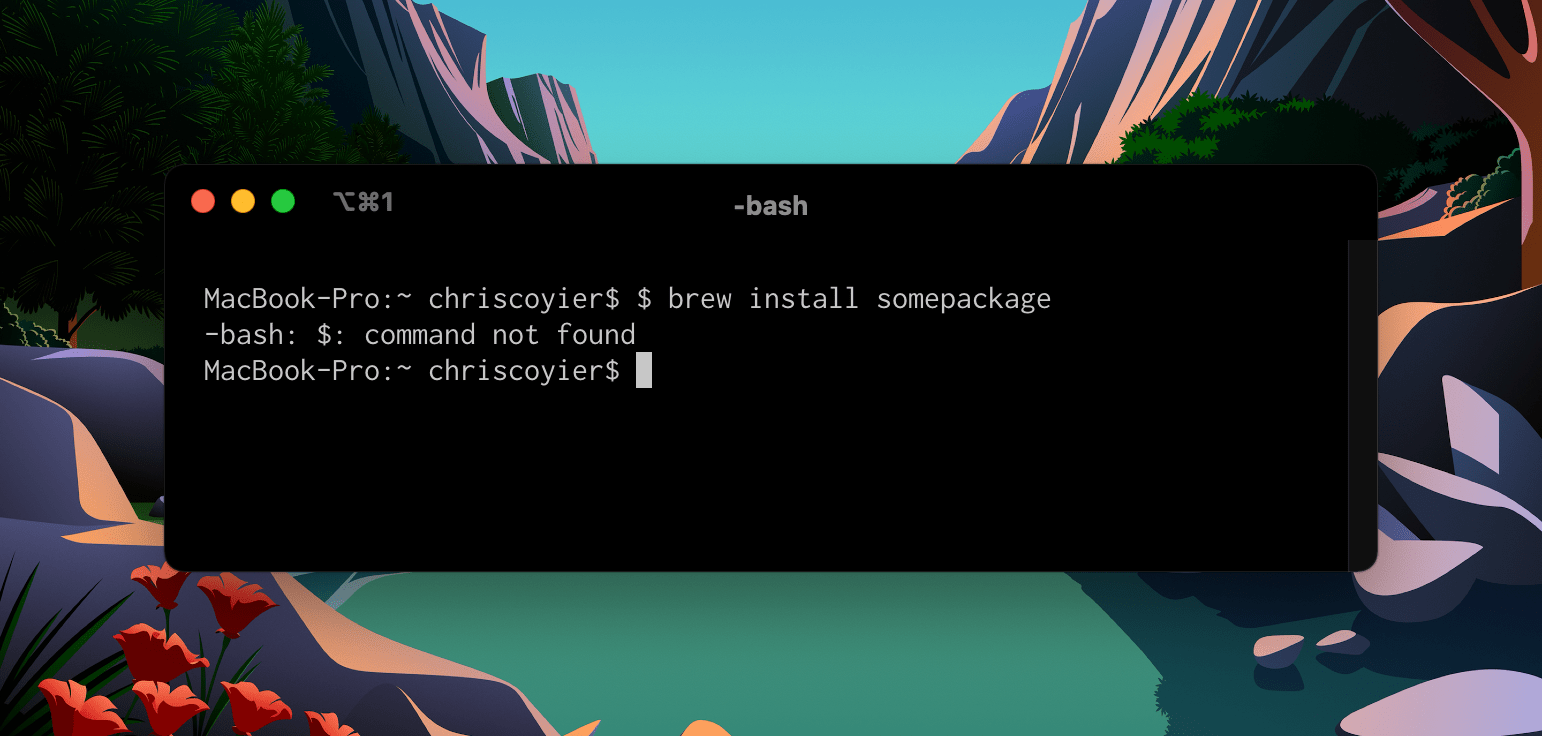
…it doesn’t work. $ is not a command. How do you deal with this? You just have to know. You just need to have had this problem before and somehow learned that what the documentation is actually telling you is to run the command brew install somepackage (without the dollar sign) at the command line.
I say minor trouble as there are all sorts of stuff like this in every job in the world. When I put something like font-size: 2.2rem in a blog post, I don’t also say, “Put that declaration in a ruleset in a CSS file that your HTML file links to.” You just have to know those those things.
Fixing it with CSS
The fact that it’s only minor trouble and that tech is laden with things you just need to know doesn’t mean that we can’t try to fix this and do a little better.
The idea for this post came from this tweet that got way more likes than I thought it would:
To expand on that, I’d expect you’re probably marking up your docs something like:
<p>Install package like:</p> <pre><code class="command">brew install package</code></pre>Now you can insert the $ as a pseudo-element rather than as actual text:
code.command::before { content: "$ ";
}
Now you aren’t just saving yourself a character in the HTML, the $ cannot be selected, because that’s how pseudo-elements work. So now you’re now a bit better in the UX department. Even if the user double-clicks the line or tries to select all of it, they won’t get the $ screwing up the copy-paste.
Hopefully they aren’t equally frustrated by not being able to copy the $. ????
So, anyway, something like this incredible design by me:
Fixing it with text
A lot of documentation for code-things are on a public git repo place like GitHub. You don’t have access to CSS to style what GitHub looks like, so while there is trickery available, you can’t just plop a line of CSS in there to style things.
We might have to (gasp) use our words:
<p> Install the package by entering this command at your terminal:
</p> <kbd class="command">brew install package</kbd>
Other thoughts
- You probably wouldn’t bother syntax highlighting it at all. I don’t think I’ve ever seen a terminal that syntax highlights commands as you enter them.
- Eric Meyer suggested the
<kbd>element which is the Keyboard Input element. I like that. I’ve long used<code>but I think<kbd>is more appropriate here. - Tim Chase suggested using a
<span>and including the prompt in the HTML so you can style it uniquely if you want, including making it not selectable withuser-select: none;. - Justin Searls has a dotfiles trick where if you accidently copy/paste the
$, it just ignores it and runs everything after it. - Jackson Bates suggests being very careful about what you copy and paste to a terminal.
- I learned that
$is also a way of denoting “unprivileged” commands while # is for root commands. Part of that reason is that if you copy-paste a root command, it won’t run as it will be recognized as a comment.