
Large organizations and enterprises often store data in spreadsheets and require an interface for entering this data into their web apps. The general idea is to upload the file, read its contents, and store it either in files or databases that the web application uses. Organizations may also need to export data from a web app. For example, they might need to export the grades of all students in a class. Again, spreadsheets are the preferred medium.
In this post, we’ll discuss different ways to handle these files and parse them to get the required information using Python.
A Quick Spreadsheet Primer
Before parsing spreadsheets, you must understand how they’re structured. A spreadsheet file is a collection of sheets, and each sheet is a collection of data cells placed in a grid, similar to a table. In a sheet, a data cell is identified by two values: its row and column numbers.
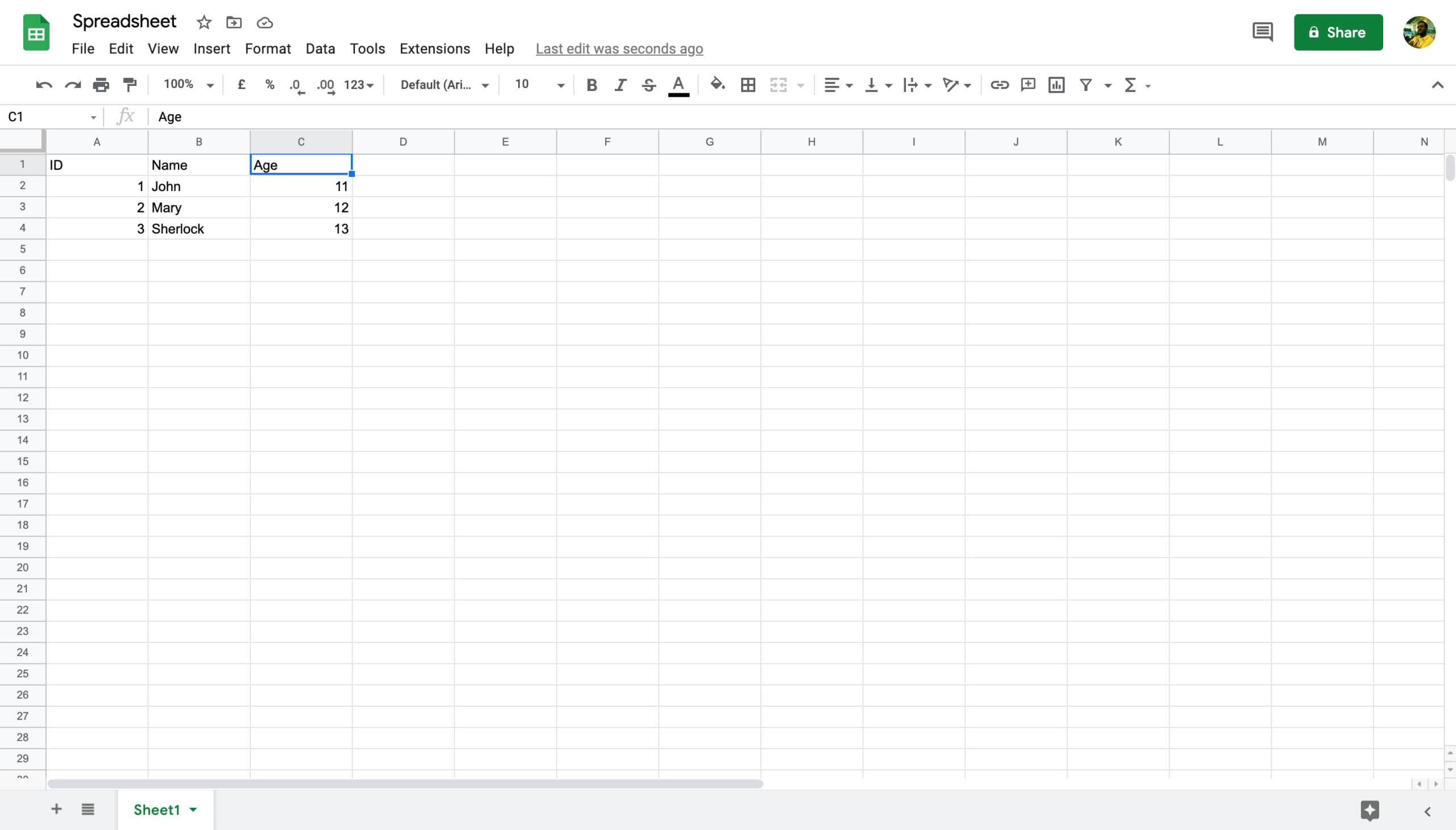
For instance, in the screenshot above, the spreadsheet contains only one sheet, “Sheet1”. The cell “2A” corresponds to the second row and first column. The value of cell 2A is 1.
Although programs with a Python 3 to read and write spreadsheets. To read and write XLSX files, you need to install the Pandas module. You can do so through one of the Python installers: pip or easy_install. Pandas uses the openpyxl module to read new spreadsheet (.xlsx) files, and xlrd modules to read legacy spreadsheets (.xls files). Both these openpyxl and xlrd are installed as dependencies when you install Pandas:
pip3 install pandas To read and write CSV files, you need the csv module, which comes pre-installed with Python. You can also read CSV files through Pandas.
Reading Spreadsheets
If you have a file and you want to parse the data in it, you need to perform the following in this order:
- import the
pandasmodule - open the spreadsheet file (or workbook)
- select a sheet
- extract the values of particular data cells
Open a spreadsheet file
Let’s first open a file in Python. To follow along you can use the following sample spreadsheet, courtesy of Learning Container:
import pandas as pd workbook = pd.read_excel('sample-xlsx-file-for-testing.xlsx') workbook.head() .dataframe tbody tr th { vertical-align: top; }
.dataframe thead th { text-align: right; }
| Segment | Country | Product | Discount Band | Units Sold | Manufacturing Price | Sale Price | Gross Sales | Discounts | Sales | COGS | Profit | Date | Month Number | Month Name | Year | |
|---|---|---|---|---|---|---|---|---|---|---|---|---|---|---|---|---|
| 0 | Government | Canada | Carretera | None | 1618.5 | 3 | 20 | 32370.0 | 0.0 | 32370.0 | 16185.0 | 16185.0 | 2014-01-01 | 1 | January | 2014 |
| 1 | Government | Germany | Carretera | None | 1321.0 | 3 | 20 | 26420.0 | 0.0 | 26420.0 | 13210.0 | 13210.0 | 2014-01-01 | 1 | January | 2014 |
| 2 | Midmarket | France | Carretera | None | 2178.0 | 3 | 15 | 32670.0 | 0.0 | 32670.0 | 21780.0 | 10890.0 | 2014-06-01 | 6 | June | 2014 |
| 3 | Midmarket | Germany | Carretera | None | 888.0 | 3 | 15 | 13320.0 | 0.0 | 13320.0 | 8880.0 | 4440.0 | 2014-06-01 | 6 | June | 2014 |
| 4 | Midmarket | Mexico | Carretera | None | 2470.0 | 3 | 15 | 37050.0 | 0.0 | 37050.0 | 24700.0 | 12350.0 | 2014-06-01 | 6 | June | 2014 |
Pandas reads the spreadsheet as a table and stores it as a Pandas dataframe.
If your file has non-ASCII characters, you should open it in the unicode format as follows:
import sys workbook = pd.read_excel('sample-xlsx-file-for-testing.xlsx', encoding=sys.getfilesystemencoding()) If your spreadsheet is very large, you can add an argument use_cols, which loads only certain columns to the dataframe. For instance, the following argument would read only the first five columns:
workbook = pd.read_excel('~/Desktop/import-export-data.xlsx', usecols = 'A:E') workbook.head() .dataframe tbody tr th { vertical-align: top; }
.dataframe thead th { text-align: right; }
| Segment | Country | Product | Discount Band | Units Sold | |
|---|---|---|---|---|---|
| 0 | Government | Canada | Carretera | None | 1618.5 |
| 1 | Government | Germany | Carretera | None | 1321.0 |
| 2 | Midmarket | France | Carretera | None | 2178.0 |
| 3 | Midmarket | Germany | Carretera | None | 888.0 |
| 4 | Midmarket | Mexico | Carretera | None | 2470.0 |
Additionally, you can use the nrows and skiprows arguments to read only a certain number of rows, or ignore a certain number of rows at the beginning, respectively.
Continue reading Using Python to Parse Spreadsheet Data on SitePoint.